📣 Important
Podman Quadlet is an actively developed feature. With the latest version change (when Podman v5 has been introduced), Quadlet has got a lot of updates that are lack on Podman v4.
Not all Linux distribution provides Podman v5. Keep in mind when you read this post, I use Podman v5.5.2 (Fedora Workstation) locally and Podman v5.4.0 (Rocky Linux 10) on server.
Debian 12 has v4.3.1 (not even Quadlet is present in that version), Ubuntu 24.04 has v4.9.3.
In this post, I write about a Nextcloud implementation via Podman Quadlet. My goal is to run it on my local machine with external database (PostgreSQL) and Redis (for cache) with object storage as primary storage.
During the post, I just paste the plain result, but I try to explain the background behind my decisions.
📝 Note
If you just want to check the result and explanation does not interest you, just check the files in this repository.
In my opinion, the easiest way to bring up Nextcloud is all in one image. But I prefer fine tune my stuff and know what is done and how, so for this reason I use another Nextcloud image that provides more option to customize.
Target architecture I want to achieve
I’ll run Nextcloud behind an Apache web server with an external database and cache service. Besides, I want to use object storage as primary storage class. The whole implementation is done with Podman Quadlets. The target architecture can be seen on the following diagram.
What is Nextcloud
Self-hosted productivity platform which provides private and secure functions for file sharing, collaborative work, and more. Includes the Nextcloud server, client applications for desktop computers, and mobile clients
Why object storage
Before answering that question, let’s clarify what object storage is and compare it with the traditional block storage.
The block storage, is split equally sized blocks, each of them has a unique identifier. When data is read, then it check the look up table for the specific block then read it. HDD or SSD in your computer is a block storage device.
Object storage is an unstructured data. Every data is saved as object which has metadata and unique name. In object storage, there is no hierarchy (e.g.: directories in block device).
Regarding cost, object storage is much cheaper because it requires less computing than block storage. Performance wise, object storage is fine with bigger files, meanwhile it become slow on lot and small files. Meanwhile block device has no issues with that.
There is no really “best in class” among them, because it depends what purpose you want to use the storage. For Nextcloud primary storage, I’ve chosen object storage, because:
- It is cheaper
- I don’t plan to store more small files on my Nextcloud instance
Why Podman
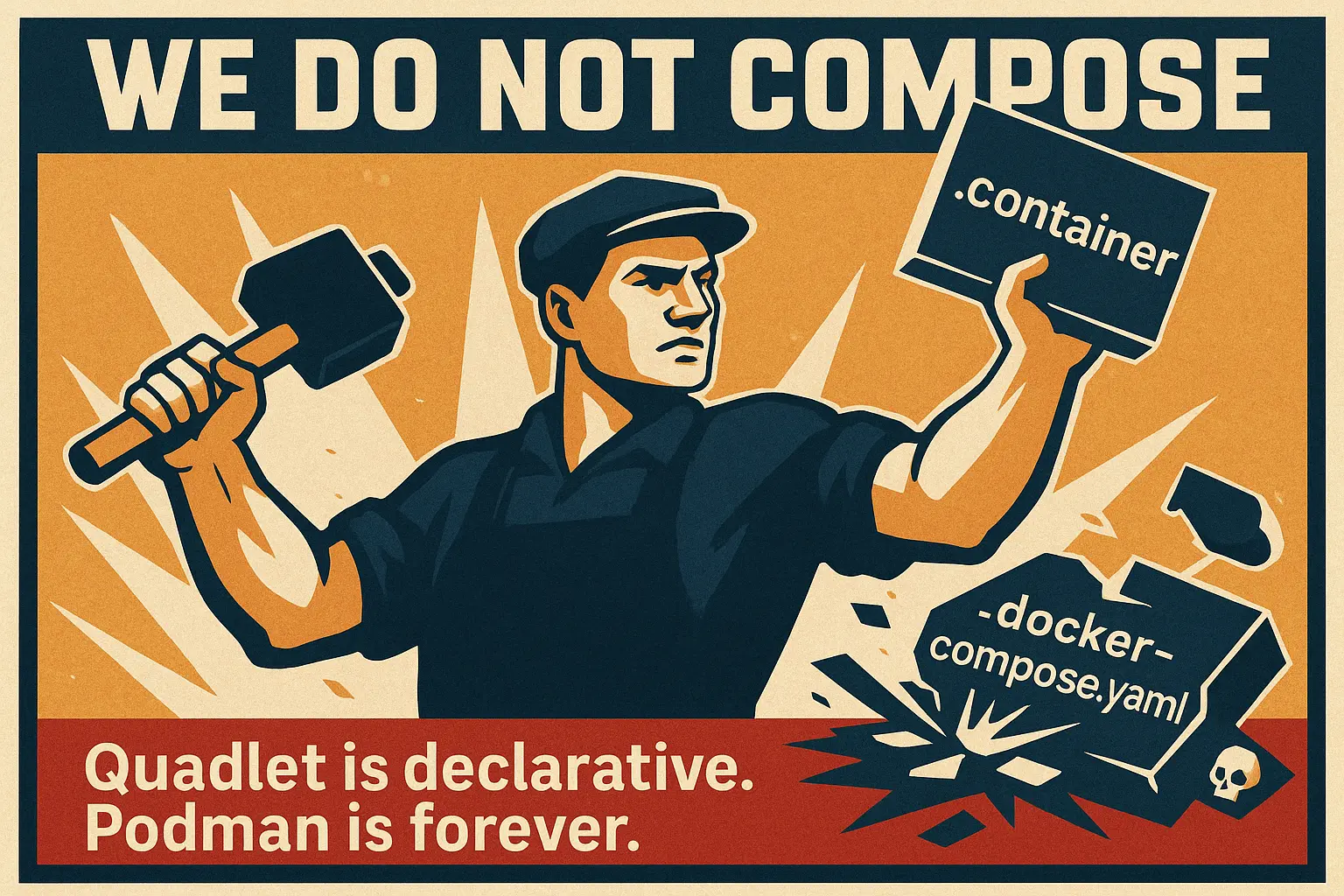
Good question, it would be much easier to bring up using docker compose
command, this is true. But recently, I started to switch to Podman from Docker
due to systemd integration. My preference is to handle everything via systemd.
People can hate it, people can tell “it is against UNIX philosophy!”, but I
don’t really care. ZFS and Docker also against UNIX philosophy, but people does
not complain about them, just using them 🤷♂️ (the “systemd hate”
might be just a trend, but it is a different discussion, independent from the
current topic).
Why Quadlet
With Podman, I know about some way to make processes persistent. First way is to generate systemd unit files, but it is deprecated since Quadlet is a thing.
Another option to use podman compose, but I’ve never liked this. This rather
seems a compatibility layer for docker compose, but it has issues. My personal
opinion: do not use it on long term, get rid of it.
We have more option, besides Quadlet, and they are the kube files. It seems a nice feature, and if there would be no Quadlet, then this would have been my choice. But comparing with Quadlet files, I does not feel it comfortable (let me also note, I rarely work with kubernetes).
So, my choice is Quadlet. I started to use this feature with podman v5
version, and I have seen it has got a lot of improvement. But missing features
is not a show stopper, since PodmanArgs option exists. I like the “ini-like”
file syntax of Quadlet files. It’s not disturb me that I’ve to split one file to
multiple ones.
💡 Tip
Here is an example. We can use Secret keyword in container files since Podman
v4.5. We can write something like this now:
Secret=db-password,type=env,target=POSTGRES_PASSWORD
And before this version, we could have done this:
PodmanArgs=--secret=db-password,type=env,target=POSTGRES_PASSWORD
Not that elegant, but at least there’s an option to define anything Quadlet still doesn’t support.
Implementation
This section, I write about what I setup and the reasons behind it. During the
implementation I use rootless containers. All Quadlet files must be put in
~/.config/containers/systemd/ directory.
To activate them (or apply changes) must be refreshed with
systemctl --user daemon-reload command.
💡 Tip
The systemd commands can be long… So I’ve made some short alias to myself.
alias usta='systemctl --user start'
alias usto='systemctl --user stop'
alias ures='systemctl --user restart'
alias ustat='systemctl --user status'
alias ureload='systemctl --user daemon-reload'
alias ucat='systemctl --user cat'
alias utimer='systemctl --user list-timers'
alias usvc='systemctl --user --type=service'
📣 Important
Important to understand, this is not a full production ready implementation. Some additional security must also be applied (e.g.: using certificate, place behind a proxy, etc.)Create pod
To create a file with nc.pod name. The rest of the container files reference
this file.
[Pod]
PublishPort=4080:80
When a pod is defined, the port and network configuration should be defined here other than the container file. This example expose the non-secure 80 port of http server on the 4080 port.
Implement Redis cache
There is nothing extra actions here, it is a regular Redis server. But there is
a small additional setting in the Exec part. I change to host Redis on
localhost (127.0.0.1). That might sound strange at first.
[Unit]
Description=Redis container for Nextcloud

[Container]
Pod=nc.pod
Image=docker.io/library/redis:latest
Exec=--bind 127.0.0.1
AutoUpdate=registry

[Service]
Restart=on-failure
RestartSec=5
StartLimitBurst=5
In Podman, we have a concept called pod. I put all my Nextcloud related container to the same pod. Containers in the same pod, share network. They are like: “all run on same machine”.
The Redis container would bind the 0.0.0.0 within the container by default.
Even without specifying 127.0.0.1, it would still work. Behind my decision there
is another reason. Because all containers share the same network within the pod,
if I connect the pod to another podman network, then the Redis port would also
be available from that network. I don’t prefer this option. Let only the
necessary ports be available on the network. Cache and database port should not
be.
I also don’t want to make a separate network for Netxtcloud backend, since pod exists. It would only complicate the implementation.
Implement PostgreSQL
Next stop is the database. This is a regular PostgreSQL server, except I also
bind its port to 127.0.0.1.
[Unit]
Description=PostgreSQL database for Nextcloud

[Container]
Pod=nc.pod
Image=docker.io/postgres:17
Exec=postgres -c listen_addresses=127.0.0.1
AutoUpdate=registry

# Persistent volumes
Volume=nc-db.volume:/var/lib/postgresql/data

# Environment variables
Environment=POSTGRES_USER=nextclouduser
Environment=POSTGRES_DB=nextcloud
Secret=nc-db-password,type=env,target=POSTGRES_PASSWORD

# Health monitoring
HealthCmd=pg_isready -d $POSTGRES_DB -U $POSTGRES_USER
HealthInterval=30s
HealthTimeout=15s
HealthRetries=10
HealthStartPeriod=15s

# Other
UserNS=keep-id:uid=999,gid=999

[Service]
Restart=on-failure
RestartSec=5
StartLimitBurst=5
🧨 Warning
I tried to use different database and user name, since Nextcloud image allows to
specify those. But it somehow did not work. It always wanted to create a
database called nextcloud, that it could not because of missing authorities.
There is a chance that I am the dummy, but with the config above, it works now.
Volume files
The volume files, are just basic volumes, you can create them with a single command.
echo "[Volume]" > nc-db.volume
echo "[Volume]" > nc-app.volume
Both file above, after a reload, would create service files. For example:
$ ucat nc-db-volume.service
# /run/user/1000/systemd/generator/nc-db-volume.service
# Automatically generated by /usr/lib/systemd/user-generators/podman-user-generator
#
[X-Volume]

[Unit]
Wants=podman-user-wait-network-online.service
After=podman-user-wait-network-online.service
SourcePath=/home/ati/.config/containers/systemd/nc-db.volume
RequiresMountsFor=%t/containers

[Service]
ExecStart=/usr/bin/podman volume create --ignore systemd-nc-db
SyslogIdentifier=%N
Type=oneshot
RemainAfterExit=yes

# /usr/lib/systemd/user/service.d/10-timeout-abort.conf
# This file is part of the systemd package.
# See https://fedoraproject.org/wiki/Changes/Shorter_Shutdown_Timer.
#
# To facilitate debugging when a service fails to stop cleanly,
# TimeoutStopFailureMode=abort is set to "crash" services that fail to stop in
# the time allotted. This will cause the service to be terminated with SIGABRT
# and a coredump to be generated.
#
# To undo this configuration change, create a mask file:
#   sudo mkdir -p /etc/systemd/user/service.d
#   sudo ln -sv /dev/null /etc/systemd/user/service.d/10-timeout-abort.conf

[Service]
TimeoutStopFailureMode=abort
Setup object storage
Any S3-compatible object storage can work with Nextcloud. My choice was OVH Cloud. It is your choice what do you prefer, but here is a guidance how to create bucket with OVH Cloud: Creating a bucket.
What is important from the setup view, following variables do we need:
- Bucket name: Anything that you have defined. I recommend to setup something random.
- Region name: Provider tell you this (in case of mine it is
de) - Host: Provider tell you this (in my case it is
s3.de.io.cloud.ovh.net) - Access key & secrete key: They are needed for the authentication
Handle secrets
We already have some sensitive information that we do not really want to share or be visible in Quadlet files. For example, if database container contains the plain password, and files are stored in any version control system, it can be a security risk.
Podman has a feature called secret. We can create secret using
podman secret create command, then we can bind it to a container using
Secret= statement.
💡 Tip
When you create Podman secret, don’t forget to press at least one space in front of command. In this case, command is not recorded into the history file.
$ echo "test" | podman secret create secret_1 -
5d0dca186db2cb55cf7c09139
$   echo "test" | podman secret create secret_2 -
155a6d28c6b115569f3e29e49
$ history | tail -n 2
 7449  podman inspect test_container --format '{{ .Config.Env }}'
 7450  echo "test" | podman secret create secret_1 -
Although Podman secret does not encrypt data (it just make a base64 decode), but at least sensitive data is not visible in config files.
How to mount secrets
We have two option to mount secret: as environment variable or as file. More popular containers, e.g.: PostgreSQL, provides way to define passwords via file. But I’ve mounted as environment variable.
Mount as environment variable has a bit bigger risk than as file, because all
defined environment variable can be listed with podman inspect command. But
with Podman v5.3 a
new feature has been
merged. In the inspect output, the secrets are masked with asterisks.
$ podman inspect test_container --format '{{ .Config.Env }}' | tr ' ' '\n'
[PATH=/usr/local/sbin:/usr/local/bin:/usr/sbin:/usr/bin:/sbin:/bin
container=podman
HOME=/root
HOSTNAME=7461e7f3c2b9
test_secret=*******]
Implement the Nextcloud application
After preparation, we’ve arrived to implement the application itself! I use this image.
📝 Note
Before move towards with this image, I want to quote from the README.md file,
that might be important for you.
This image is maintained by community volunteers and designed for expert use. For quick and easy deployment that supports the full set of Nextcloud Hub features, use the Nextcloud All-in-One docker container maintained by Nextcloud GmbH.}}
The full nc-app.container is here. The meaning of the environment variables
can be read in the Github’s README page, or from Nextcloud documentation.
Define secrets from the container file accordingly.
[Unit]
Description=Nextcloud instance

[Container]
Pod=nc.pod
Image=docker.io/library/nextcloud:latest
AutoUpdate=registry

# Volumes
Volume=nc-app.volume:/var/www/html

# Environment variables

# Database variables
Environment=POSTGRES_USER=nextclouduser
Environment=POSTGRES_DB=nextcloud
Environment=POSTGRES_HOST=127.0.0.1
Secret=nc-db-password,type=env,target=POSTGRES_PASSWORD

# Default admin user and password
Environment=NEXTCLOUD_ADMIN_USER=ati
Secret=nc-admin-pw,type=env,target=NEXTCLOUD_ADMIN_PASSWORD

# Redis variables
Environment=REDIS_HOST=127.0.0.1
Environment=REDIS_PORT=6379

# SMTP variables
Environment=SMTP_HOST=smtp.rackhost.hu
Environment=SMTP_SECURE=tls
Environment=SMTP_PORT=587
Environment=SMTP_NAME=noreply@thinkaboutit.tech
Environment=SMTP_DOMAIN=thinkaboutit.tech
Environment=SMTP_FROM_ADDRESS=noreply@thinkaboutit.tech
Secret=tai-noreply,type=env,target=SMTP_PASSWORD

# S3 bucket as primary storage
Environment=OBJECTSTORE_S3_BUCKET=dakota-bazooka-metaphor-axes
Environment=OBJECTSTORE_S3_REGION=de
Environment=OBJECTSTORE_S3_HOST=s3.de.io.cloud.ovh.net
Secret=ovh-s3-access-key,type=env,target=OBJECTSTORE_S3_KEY
Secret=ovh-s3-secret-key,type=env,target=OBJECTSTORE_S3_SECRET


[Service]
Restart=on-failure
RestartSec=5
StartLimitBurst=5
Start the service
Finally! We have arrived when we can start it!
📝 Note
For quicker actions, I use some of my alias for systemctl commands.
alias usta='systemctl --user start'
alias usto='systemctl --user stop'
alias ures='systemctl --user restart'
alias ustat='systemctl --user status'
alias ureload='systemctl --user daemon-reload'
alias ucat='systemctl --user cat'
alias utimer='systemctl --user list-timers'
alias usvc='systemctl --user --type=service'
$ ureload
$ usta nc-pod
$ usvc | grep "nc-"
  nc-app-volume.service                                                                     loaded active exited  nc-app-volume.service
  nc-app.service                                                                            loaded active running Nextcloud instance
  nc-db-volume.service                                                                      loaded active exited  nc-db-volume.service
  nc-db.service                                                                             loaded active running PostgreSQL database for Nextcloud
  nc-pod.service                                                                            loaded active running nc-pod.service
  nc-redis.service                                                                          loaded active running Redis container for Nextcloud
$ podman ps --pod
CONTAINER ID  IMAGE                               COMMAND               CREATED         STATUS                    PORTS                           NAMES             POD ID        PODNAME
0c63ed999d2b                                                            23 seconds ago  Up 23 seconds             0.0.0.0:4080->80/tcp            systemd-nc-infra  f6c14bffad37  systemd-nc
bd779e60a144  docker.io/library/redis:latest      --bind 127.0.0.1      23 seconds ago  Up 23 seconds             0.0.0.0:4080->80/tcp, 6379/tcp  systemd-nc-redis  f6c14bffad37  systemd-nc
417b7db42f98  docker.io/library/nextcloud:latest  apache2-foregroun...  23 seconds ago  Up 23 seconds             0.0.0.0:4080->80/tcp            systemd-nc-app    f6c14bffad37  systemd-nc
165d4cab73f9  docker.io/library/postgres:17       postgres -c liste...  23 seconds ago  Up 22 seconds (starting)  0.0.0.0:4080->80/tcp, 5432/tcp  systemd-nc-db     f6c14bffad37  systemd-nc
And opening the http://localhost:4080 it redirect to the login screen, since
we have specified everything as environment variable, so setup is automatically
done. In the bucket, files also has been created, so it works!
$ aws s3 ls s3://dakota-bazooka-metaphor-axes | head -n 5
2025-07-13 21:28:18     457744 urn:oid:10
2025-07-13 21:28:18     474653 urn:oid:11
2025-07-13 21:28:19    2170375 urn:oid:12
2025-07-13 21:28:20     797325 urn:oid:13
2025-07-13 21:28:20        150 urn:oid:14
Small extra for automatically start it
By default, rootless container can run only when user is logged in. On a server it usually not the case. This has to be done once per user.
# Check if your user Linger status is enable
$ loginctl show-user $USER | grep "^Linger"
Linger=no
# If no, then enable it
$ loginctl enable-linger $USER
$ loginctl show-user $USER | grep "^Linger"
Linger=yes
We also have to specify that systemd should start the container after a reboot.
And also specify when. Just specify in the *.container files the following two
files.
[Install]
WantedBy=default.target
Theoretically, you have to put these lines into every container file, but in
practice, enough if you put into one. Why? Let’s say you have pasted the
WantedBy line to nc-app.container file. Because of that line, after a system
boot, when default.target is available, this nc-app service is started.
If we check the [Unit] part of generated nc-app.service file, we can see the
BindsTo=nc-pod.service. It also has Requires=nc-app-volume.service, this is
why volumes are also created during startup.
$ ucat nc-app.service
# /run/user/1000/systemd/generator/nc-app.service
# Automatically generated by /usr/lib/systemd/user-generators/podman-user-generator
#
[Unit]
Wants=podman-user-wait-network-online.service
After=podman-user-wait-network-online.service
Description=Nextcloud instance
SourcePath=/home/ati/.config/containers/systemd/nc-app.container
RequiresMountsFor=%t/containers
Requires=nc-app-volume.service
After=nc-app-volume.service
BindsTo=nc-pod.service   # <=== Important part
After=nc-pod.service
Now, let’s take a look for nc-pod.service unit. Because all other file has
reference to nc.pod file, it creates a Wants definition in the pod unit.
$ ucat nc-pod
# /run/user/1000/systemd/generator/nc-pod.service
# Automatically generated by /usr/lib/systemd/user-generators/podman-user-generator
#
[X-Pod]
PublishPort=4080:80

[Unit]
Wants=podman-user-wait-network-online.service
After=podman-user-wait-network-online.service
SourcePath=/home/ati/.config/containers/systemd/nc.pod
RequiresMountsFor=%t/containers
Wants=nc-app.service
Before=nc-app.service
Wants=nc-db.service
Before=nc-db.service
Wants=nc-redis.service
Before=nc-redis.service
So in this case, if nc-app is starting, it also invoke start for nc-pod,
which also invoke start for nc-redis and nc-db services.
What should also be done to be production ready?
As I mentioned, this setup is a not full production ready setup. Some things are on the list before putting it to production.
Check dependencies
In the nc-app.container file, we could specify a After= properties with the
Redis and PostgreSQL services. For example After=nc-db.service.
If the web app wants to start before database is up, web app may fail. But due to its restart policy, it would try to restart again. So not the end of the world if this is missing, but it helps keep the logs cleaner.
Setup encryption
In this example, I reach on via the unsecure port (80). In a real production, it would requires to create certificates and listen on https instead of http.
You can also put it behind a reverse-proxy as well, depends on your setup.
Check Nextcloud admin panel
The admin panel listing some potential risks. Worth to check and correct them based on Nextcloud documentation.
Better volume setup
Right now, there’s just a single volume created. For a better volume setup, read this part from the github repository: https://github.com/nextcloud/docker?tab=readme-ov-file#additional-volumes.
Backups
Backups always must be planned before any production usage. In this case, we have to backup multiple components:
- Database
- Web application files
- Object storage
And not just copy them, but copy in the same time with the same status! An
inconsistent backup is not a backup. So before backup, all container must be
stopped (usto nc-pod command).
It’s also worth working out a method to validate the restore method and the backup content.
Final words
In this article, I wrote about how I implemented Nextcloud on rootless Podman Quadlet. We could say that it would be simpler with Docker compose file. This statement might be true, but Docker compose files are much more mainstream and popular than Podman Quadlet. Podman Quadlet is a newer thing. But because of systemd integration, it worth to work out these things once.